Enhancing Security: Adding AWS Cognito Authentication to Your Serverless App
Our serverless survey application is a great example of a modern cloud native application. It’s fast, scalable, and cost-effective. But it’s missing one critical feature: user authentication. In this post, we’ll walk through how to add robust, secure authentication using AWS Cognito.
Why Add Authentication?
Right now, anyone can vote, and anyone can reset the entire survey. In a real-world application, we need to control access. Authentication allows us to:
- Prevent abuse: Stop users from voting multiple times.
- Secure administrative functions: Only allow authorized users to reset the survey.
- Personalize the user experience: (Future enhancement) Show users their past votes.
Exploring the Options
When adding authentication to a serverless app on AWS, there are a few common patterns:
API Keys: The simplest approach. We could generate an API key and require it for certain API endpoints.
- Pros: Easy to implement.
- Cons: Not true user authentication. Keys can be shared or leaked. Doesn’t scale for managing individual users.
Lambda Authorizers (Custom Authorizers): We can write a custom Lambda function that is triggered by API Gateway before the main handler. This function would be responsible for validating a token (e.g., a session token you manage yourself).
- Pros: Full control over the authentication logic.
- Cons: You have to build and manage the entire user lifecycle yourself (sign-up, sign-in, password reset, etc.). This is a lot of work and easy to get wrong.
AWS Cognito: A fully managed user identity and authentication service. Cognito handles all the heavy lifting of user management, including sign-up, sign-in, password recovery, and multi-factor authentication (MFA). It integrates seamlessly with API Gateway.
- Pros: Secure, scalable, and feature-rich. Offloads the undifferentiated heavy lifting of authentication.
- Cons: Can seem complex at first due to the number of features.
For our application, AWS Cognito is the clear winner. It provides the best balance of security, features, and ease of integration.
Understanding the Current Architecture
Before we add authentication, let’s visualize how our serverless application currently works:
Right now, anyone can call our API endpoints. There’s no way to verify who’s making the request or prevent abuse.
The Plan: Integrating Cognito
We’ll use a Cognito User Pool to manage our users. Think of it as a user database with built-in authentication logic. Here’s the high-level plan:
Infrastructure (Terraform):
- Create a Cognito User Pool to store and manage users.
- Create a Cognito User Pool Client, which allows our frontend application to interact with the User Pool.
- Add an authorizer to our API Gateway to protect our endpoints.
Frontend (HTML/JavaScript):
- Create a login page (
login.html). - Add sign-up and sign-in forms.
- Use the Amazon Cognito Identity SDK for JavaScript to communicate with Cognito.
- On successful sign-in, store the JWT (JSON Web Token) from Cognito in local storage.
- Include the JWT in the
Authorizationheader of all subsequent API requests. - Add a “Logout” button.
- Create a login page (
Backend (Lambda):
- Update our Lambda functions to expect and validate the JWT from Cognito. API Gateway will do most of the validation for us.
- We can use the claims inside the JWT to identify the user. For instance, we can use the user’s
sub(subject) claim instead of thesessionIdto track votes.
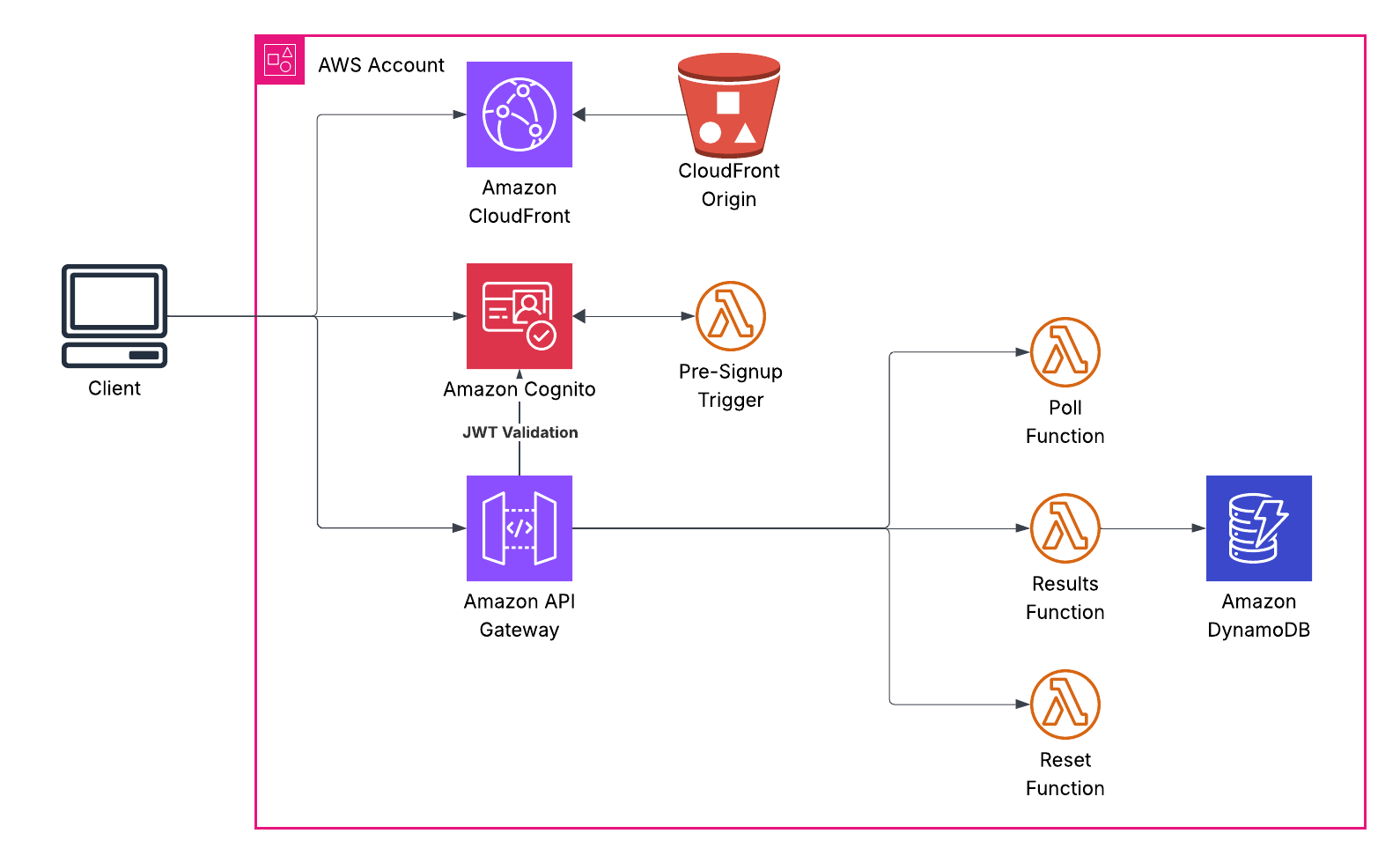
Here’s what the authenticated architecture will look like:
Let’s Get Building!
Step 1: Beefing up our Terraform
First, we need to add the Cognito resources to our terraform/main.tf file.
# --- Cognito User Pool ---
resource "aws_cognito_user_pool" "survey_user_pool" {
  name = "SurveyUserPool"
  auto_verified_attributes = ["email"]
}

resource "aws_cognito_user_pool_client" "survey_user_pool_client" {
  name = "SurveyUserPoolClient"
  user_pool_id = aws_cognito_user_pool.survey_user_pool.id
  generate_secret = false # This is a public client
  explicit_auth_flows = ["ALLOW_USER_PASSWORD_AUTH", "ALLOW_REFRESH_TOKEN_AUTH"]
}
We also need to update our API Gateway to use a Cognito authorizer.
# --- API Gateway ---
resource "aws_apigatewayv2_api" "survey_api" {
  name          = "CrackingTheCloudSurveyAPI"
  protocol_type = "HTTP"
  cors_configuration {
    allow_origins = ["*"]
    allow_methods = ["POST", "GET", "OPTIONS"]
    allow_headers = ["*"]
  }
}

resource "aws_apigatewayv2_authorizer" "cognito_authorizer" {
  api_id           = aws_apigatewayv2_api.survey_api.id
  authorizer_type  = "JWT"
  identity_sources = ["$request.header.Authorization"]
  name             = "CognitoAuthorizer"
  jwt_configuration {
    audience = [aws_cognito_user_pool_client.survey_user_pool_client.id]
    issuer   = "https://${aws_cognito_user_pool.survey_user_pool.endpoint}"
  }
}

# Update the routes to use the authorizer
resource "aws_apigatewayv2_route" "vote_route" {
  api_id    = aws_apigatewayv2_api.survey_api.id
  route_key = "POST /vote"
  target    = "integrations/${aws_apigatewayv2_integration.vote_integration.id}"
  authorization_type = "JWT"
  authorizer_id = aws_apigatewayv2_authorizer.cognito_authorizer.id
}

resource "aws_apigatewayv2_route" "reset_route" {
  api_id    = aws_apigatewayv2_api.survey_api.id
  route_key = "POST /reset"
  target    = "integrations/${aws_apigatewayv2_integration.reset_integration.id}"
  # Note: we might want more fine-grained control here in a real app
  authorization_type = "JWT"
  authorizer_id = aws_apigatewayv2_authorizer.cognito_authorizer.id
}
Step 2: The Frontend - Where the Magic Happens
This is where we’ll see the biggest changes. We need a way for users to sign up and sign in.
First, let’s create a new login.html page. This will be a simple page with forms for sign-up and sign-in.
We’ll also need to include the AWS Cognito Identity SDK in our project. We can either download it and host it ourselves, or use a CDN. For simplicity, we’ll use a CDN in our HTML files.
<!-- In login.html, index.html, etc. -->
<script src="https://cdn.jsdelivr.net/npm/amazon-cognito-identity-js@5.2.10/dist/amazon-cognito-identity.min.js"></script>
Our main.js will need a significant update. Here are the key parts:
// Add these variables at the top of main.js
const API_URL = '${API_URL}';
const COGNITO_USER_POOL_ID = '${COGNITO_USER_POOL_ID}';
const COGNITO_CLIENT_ID = '${COGNITO_CLIENT_ID}';

const poolData = {
    UserPoolId: COGNITO_USER_POOL_ID,
    ClientId: COGNITO_CLIENT_ID
};
const userPool = new AmazonCognitoIdentity.CognitoUserPool(poolData);

// On page load, check if the user is logged in
window.onload = function() {
    const idToken = localStorage.getItem('idToken');
    if (!idToken && !window.location.href.endsWith('login.html')) {
        window.location.href = 'login.html';
    } else if (idToken && window.location.href.endsWith('index.html')) {
        addSignOutButton();
    }
};

function addSignOutButton() {
    const container = document.getElementById('signout-container');
    if (container) {
        const signOutButton = document.createElement('button');
        signOutButton.textContent = 'Sign Out';
        signOutButton.onclick = signOutUser;
        container.appendChild(signOutButton);
    }
}

function signUpUser() {
    const email = document.getElementById('signUpEmail').value;
    const password = document.getElementById('signUpPassword').value;
    const messageDiv = document.getElementById('message');

    const attributeList = [];
    const dataEmail = {
        Name: 'email',
        Value: email,
    };
    const attributeEmail = new AmazonCognitoIdentity.CognitoUserAttribute(dataEmail);
    attributeList.push(attributeEmail);

    userPool.signUp(email, password, attributeList, null, function(err, result){
        if (err) {
            messageDiv.textContent = err.message || JSON.stringify(err);
            return;
        }
        messageDiv.textContent = 'Sign up successful! Please check your email for a verification code.';
        document.getElementById('confirm-container').style.display = 'block';
    });
}

function confirmSignUpUser() {
    const email = document.getElementById('signUpEmail').value;
    const code = document.getElementById('confirmationCode').value;
    const messageDiv = document.getElementById('message');

    const userData = {
        Username: email,
        Pool: userPool
    };

    const cognitoUser = new AmazonCognitoIdentity.CognitoUser(userData);
    cognitoUser.confirmRegistration(code, true, function(err, result) {
        if (err) {
            messageDiv.textContent = err.message || JSON.stringify(err);
            return;
        }
        messageDiv.textContent = 'Confirmation successful! You can now sign in.';
        document.getElementById('confirm-container').style.display = 'none';
    });
}

function signInUser() {
    const email = document.getElementById('signInEmail').value;
    const password = document.getElementById('signInPassword').value;
    const messageDiv = document.getElementById('message');

    const authenticationData = {
        Username: email,
        Password: password,
    };
    const authenticationDetails = new AmazonCognitoIdentity.AuthenticationDetails(authenticationData);
    const userData = {
        Username: email,
        Pool: userPool
    };
    const cognitoUser = new AmazonCognitoIdentity.CognitoUser(userData);

    cognitoUser.authenticateUser(authenticationDetails, {
        onSuccess: function (result) {
            const idToken = result.getIdToken().getJwtToken();
            localStorage.setItem('idToken', idToken);
            window.location.href = 'index.html';
        },
        onFailure: function(err) {
            messageDiv.textContent = err.message || JSON.stringify(err);
        },
    });
}

function signOutUser() {
    localStorage.removeItem('idToken');
    const cognitoUser = userPool.getCurrentUser();
    if (cognitoUser) {
        cognitoUser.signOut();
    }
    window.location.href = 'login.html';
}

async function vote(option) {
    const idToken = localStorage.getItem('idToken');
    if (!idToken) {
        window.location.href = 'login.html';
        return;
    }

    const messageDiv = document.getElementById('message');
    messageDiv.textContent = 'Submitting your vote...';

    try {
        const response = await fetch(`${API_URL}vote`, {
            method: 'POST',
            headers: {
                'Content-Type': 'application/json',
                'Authorization': `Bearer ${idToken}`
            },
            body: JSON.stringify({ vote: option }),
        });

        if (!response.ok) {
            throw new Error(`HTTP error! status: $${response.status}`);
        }

        messageDiv.textContent = 'Thank you for voting!';
        document.querySelectorAll('.vote-btn').forEach(button => {
            button.disabled = true;
        });

    } catch (error) {
        console.error('Error submitting vote:', error);
        messageDiv.textContent = 'Sorry, there was an error submitting your vote.';
    }
}
Step 3: Backend Adjustments
Our backend Lambda functions need a small change. Since we are now identifying users by their JWT, we can remove the sessionId logic. The vote.py function will now get the user’s unique ID from the JWT claims that API Gateway passes along.
Here’s how the Lambda function processes an authenticated request:
# In backend/vote.py

def handler(event, context):
    try:
        body = json.loads(event.get('body', '{}'))
        vote_option = body.get('vote')

        # Get user id from the authorizer context
        # API Gateway extracts this from the JWT and passes it to Lambda
        user_id = event['requestContext']['authorizer']['jwt']['claims']['sub']

        if not user_id:
            return {'statusCode': 400, ...}

        if vote_option not in ['no', 'aws', 'other']:
            return {'statusCode': 400, ...}

        item = {
            'id': user_id,      # Use the cognito user id as the primary key
            'vote': vote_option
        }
        table.put_item(Item=item)

        return {'statusCode': 200, ...}
    except Exception as e:
        # ...
What’s happening here?
- The
sub(subject) claim in the JWT is a unique identifier for each Cognito user - API Gateway validates the JWT before the Lambda even runs
- If the JWT is invalid or missing, the request never reaches our Lambda
- We use the user’s
subas the primary key in DynamoDB, ensuring one vote per user
Security is Not a Feature, It’s a Foundation
Let’s talk about the security improvements we’ve made:
- Managed User Directory: We are not storing passwords. Cognito handles all password policies, hashing, and storage, following best practices.
- JWT Authentication: We’re using the industry standard for API authentication. The JWTs are signed by Cognito, and our API Gateway verifies this signature on every request. This prevents token tampering.
- Secure Token Storage: We are storing the JWT in
localStorage. This is a common practice, but it’s important to be aware of the risks (like XSS attacks). For higher security applications, we could store tokens in memory and use refresh tokens to get new access tokens. - HTTPS Everywhere: Our entire application, from the frontend on CloudFront to the API Gateway, enforces HTTPS. This prevents eavesdropping.
- Least Privilege: Our Lambda functions have fine-grained IAM roles. They can only access the DynamoDB table they need.
Understanding Our Lambda Functions
Let’s break down what each Lambda function does in our application:
Vote Lambda Function
This function processes vote submissions from authenticated users.
Key responsibilities:
- Extract the vote option from the request body
- Get the user’s unique ID from the JWT claims (provided by API Gateway)
- Validate the vote is one of the allowed options
- Store the vote in DynamoDB using the user ID as the key (prevents duplicate votes)
Results Lambda Function
This function retrieves and counts all votes. No authentication required - results are public!
Key responsibilities:
- Scan the entire DynamoDB table to get all votes
- Handle pagination (DynamoDB returns max 1MB per request)
- Count votes for each option using Python’s
Counter - Return totals as JSON:
{"no": 5, "aws": 12, "other": 3}
Reset Lambda Function
This function deletes all votes. Requires authentication to prevent abuse.
Key responsibilities:
- Scan the table to get all item IDs
- Use batch writer to efficiently delete items (groups of 25)
- Handle pagination for large datasets
- Return success confirmation
Email Filter Lambda Function
This is a special type of Lambda called a Cognito Trigger. It runs automatically before a user signs up.
Key responsibilities:
- Extract the email from the sign-up request
- Check if it ends with
@charlotte.edu - Allow or reject the sign-up based on the domain
- This enforces organization-level access control
The Final Result
After implementing these changes, our complete authentication flow looks like this:
We’ve now added a robust and secure authentication layer to our serverless application, moving it from a simple demo to a more production-ready state. This is the power of leveraging managed services like AWS Cognito!
Bonus: Restricting Sign-ups to a Specific Email Domain
A common requirement is to restrict application access to users from a specific organization. We can easily extend our Cognito setup to only allow sign-ups from users with a @charlotte.edu email address.
This is accomplished using a Cognito Pre Sign-up Lambda Trigger. This trigger fires just before Cognito creates a new user, giving us a chance to run custom validation logic.
What’s a Lambda Trigger? Think of it like a hook or event listener. Cognito has several points in the user lifecycle where it can automatically invoke a Lambda function:
- Pre Sign-up: Before creating a new user (we use this one!)
- Post Confirmation: After a user confirms their email
- Pre Authentication: Before signing in
- Post Authentication: After signing in
These triggers let you customize Cognito’s behavior without modifying AWS’s code.
Step 1: Create the Email Filter Lambda
We’ll create a new Lambda function in backend/email-filter.py:
import json

def handler(event, context):
    # This trigger is invoked before a user is signed up
    email = event['request']['userAttributes'].get('email')

    if email and email.endswith('@charlotte.edu'):
        # Allow sign-up
        return event
    else:
        # Block sign-up
        raise Exception("Only users with a @charlotte.edu email address are allowed to sign up.")
Step 2: Update Terraform
Now, we’ll update our terraform/main.tf to create this new Lambda and associate it with our User Pool.
data "archive_file" "email_filter_zip" {
  type        = "zip"
  source_file = "../backend/email-filter.py"
  output_path = "email-filter.zip"
}

resource "aws_lambda_function" "email_filter_function" {
  function_name = "CrackingTheCloudEmailFilter"
  role          = aws_iam_role.lambda_exec_role.arn
  handler       = "email-filter.handler"
  runtime       = "python3.9"
  filename      = data.archive_file.email_filter_zip.output_path
  source_code_hash = data.archive_file.email_filter_zip.output_base64sha256
}

resource "aws_cognito_user_pool" "survey_user_pool" {
  name                     = "SurveyUserPool"
  auto_verified_attributes = ["email"]

  lambda_config {
    pre_sign_up = aws_lambda_function.email_filter_function.arn
  }
}

resource "aws_lambda_permission" "cognito_permission_email_filter" {
  statement_id  = "AllowCognitoToInvokeEmailFilter"
  action        = "lambda:InvokeFunction"
  function_name = aws_lambda_function.email_filter_function.function_name
  principal     = "cognito-idp.amazonaws.com"
  source_arn    = aws_cognito_user_pool.survey_user_pool.arn
}
With these changes, any attempt to sign up with an email address that does not end in @charlotte.edu will be rejected by Cognito. This is a powerful way to enforce organization-specific access control.
Key Takeaways for Students
What you’ve learned:
- Serverless Authentication: No need to build your own user management system from scratch
- JWT Tokens: Industry-standard way to authenticate API requests
- Lambda Triggers: Extend AWS services with custom logic at specific lifecycle events
- API Gateway Authorizers: Validate tokens before requests reach your backend code
- Infrastructure as Code: All of this is defined in Terraform and can be deployed in minutes
Real-world applications:
- Student portals restricted to university email domains
- Internal company tools that only employees can access
- Multi-tenant SaaS applications where each organization has isolated access
- Mobile apps that need secure backend APIs
Cost considerations:
- Cognito: First 50,000 monthly active users are free
- Lambda: First 1 million requests per month are free
- DynamoDB: 25 GB of storage free
- API Gateway: First 1 million API calls per month are free
For a student project or small application, this entire stack runs essentially for free!
Next Steps
Want to take this further? Here are some ideas:
- Add user profiles: Store additional user data in DynamoDB
- Implement admin roles: Use Cognito groups to create admin users with special permissions
- Add MFA: Enable multi-factor authentication for extra security
- Social sign-in: Allow users to sign in with Google, Facebook, or other providers
- Password reset flow: Implement “forgot password” functionality
- Email customization: Customize the verification emails Cognito sends
The foundation you’ve built here is production-ready and can scale to millions of users!
GitHub Repository: https://github.com/lukelittle/adding-cognito-to-our-survey-app